Samsung Notes can create and edit documents and collaborate with others
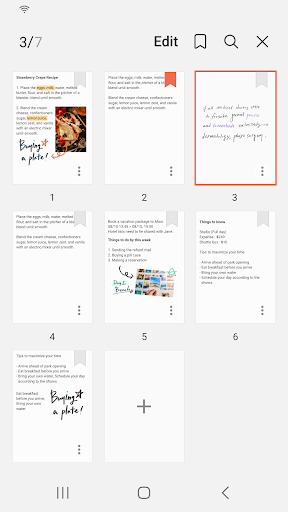
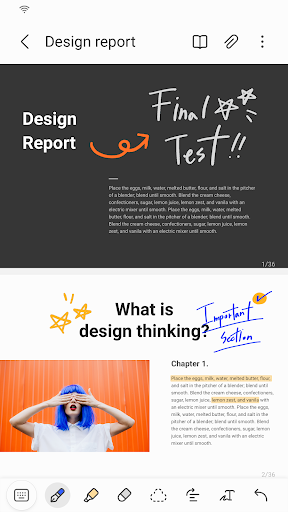
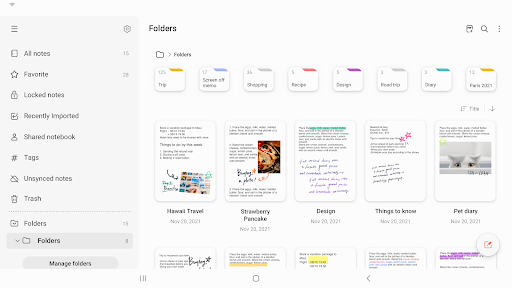
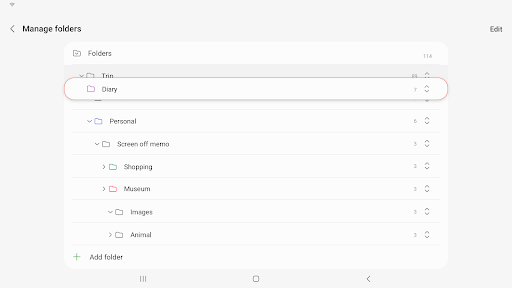
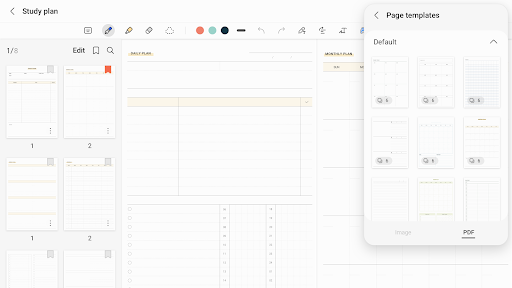
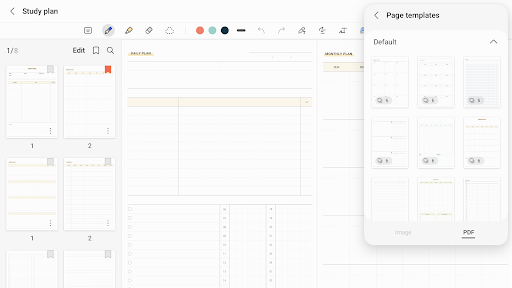
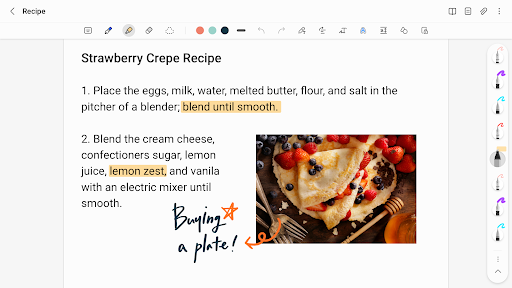
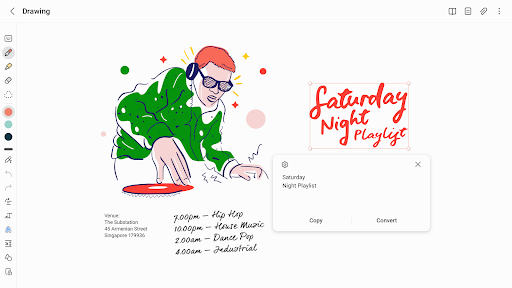
Samsung Notes can create and edit documents on mobile, tablet, or PC and collaborate with others. User can add annotations to the PDF using S Pen and create documents with images or voices. It can also be used by connecting documents with various apps such as PDF, Microsoft Word, Microsoft PowerPoint, etc.
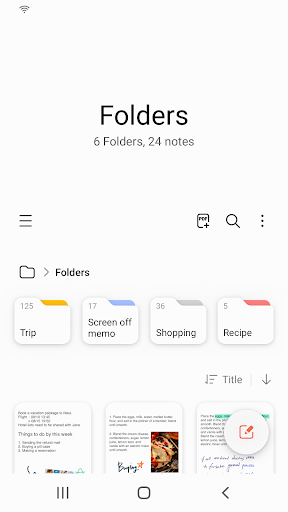
Try creating a new note. You can create a new note by tapping + in the bottom right corner of the main screen. Newly created notes will have the “sdocx” extension.
Protect your notes. 1. On the main screen, tap More Options in the upper right corner, select Settings, then select Lock Note. Then select a note locking method and password. 2. Lock the notes you want to protect by tapping More Options on the screen of the note you want to protect and selecting Lock Note.
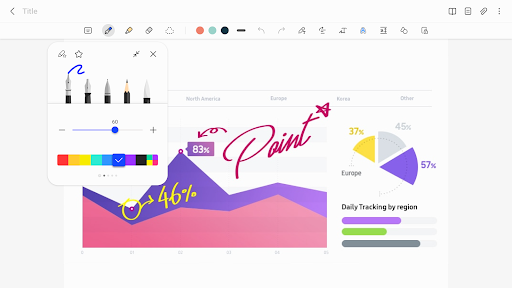
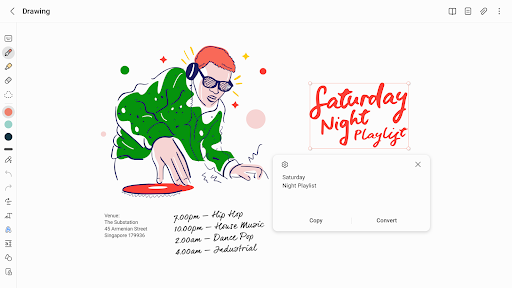
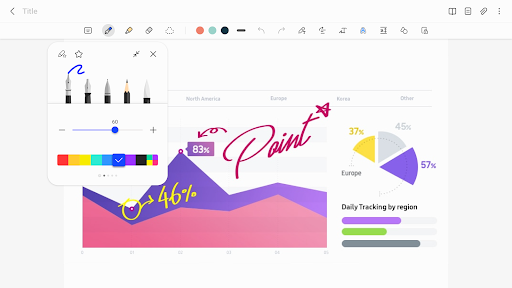
Create handwritten notes. Tap the Handwriting icon while writing a note. Your handwriting will be displayed directly on the note.
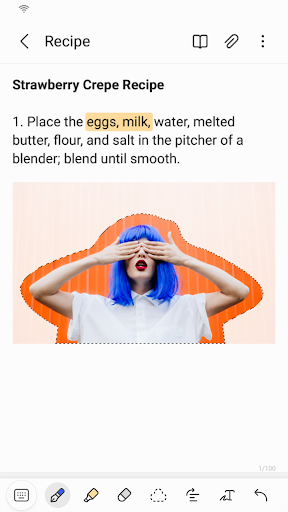
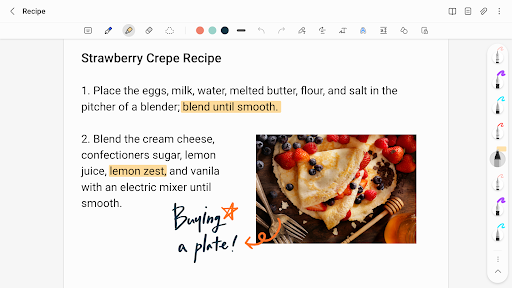
Add photos. Tap the photo icon in the note you are working on to take a photo. You may also load, add tags to and edit an existing photo.
Add a voice recording. By tapping the Voice Recording icon while writing a note, you can record sound and create a note with sound.
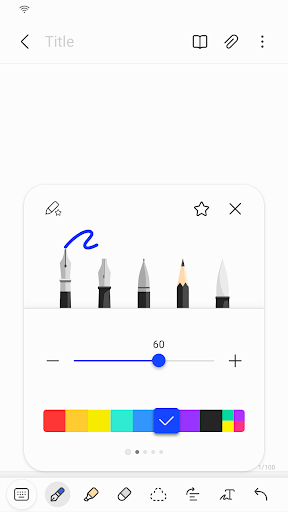
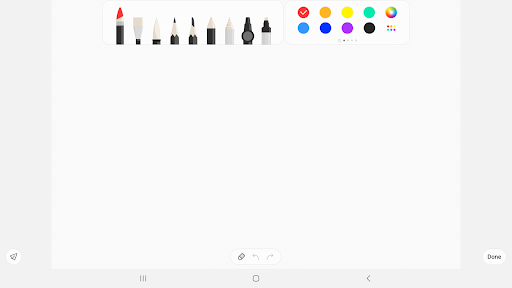
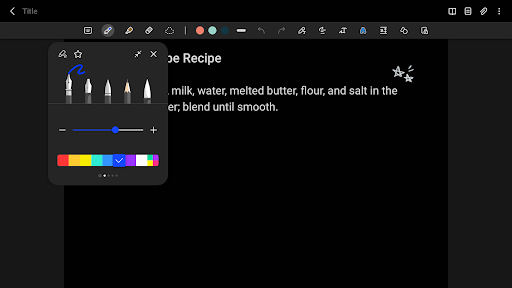
Try using various writing tools. By tapping the Pen icon while writing a note, you can select a variety of writing tools such as pens, fountain pens, pencils, highlighters, etc., as well as various colors and thicknesses. By tapping the Eraser icon, you can select and erase content that you want to remove.
You can import notes and memos created in Notes and Memo. By using the Smart Switch feature, you can import data created in S Note and Memo saved on other devices. You can also import previously created notes and memos with your Samsung account.
* Notice regarding app access permissions:
The following access permissions are required to provide you with this service. Basic features of the service can be used even if Optional permissions are not granted.
[Optional permissions] • Camera : Used to add pictures and scanned documents to notes • Files and media : Used to save or load document files (Android 12) • Microphone : Used to add voice recordings to notes • Music and audio : Used to add audio to notes (Android 13) • Notifications : Used to notify you about invitations to shared notes, note syncing issues, and more (from Android 13) • Photos and videos : Used to add pictures and videos to notes (Android 13) • Storage : Used to save or load document files (Android 9~11)
You can still use the app's basic functions without allowing the optional permissions.